
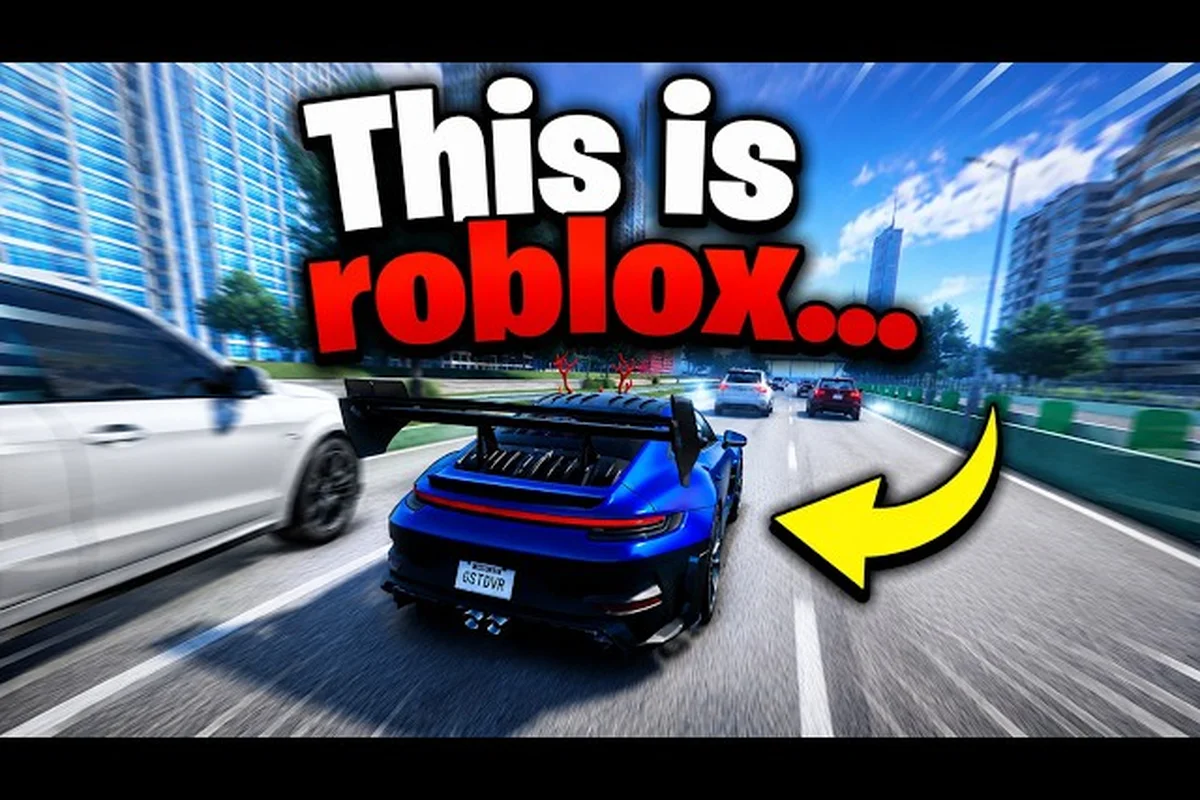
Jumping into Ghost Driver without knowing the keyboard layout is a fast way to wreck a brand-new ride. The full Ghost Driver keyboard controls list is surprisingly compact, but each key matters when you are threading through highway traffic at speed. This guide breaks down every binding, explains the camera system, and covers the graphics settings that keep your frame rate stable during chaotic runs.
The game, currently in PRE-ALPHA on Roblox, has already pulled in over 901,000 visits and roughly 3,400 concurrent players at peak times, according to the Roblox Games API. That level of activity means you will be competing with plenty of other drivers for the same highway gaps, so knowing your controls before you hit the gas gives you a real edge. The official game page lists the core bindings, but this guide expands on each one with practical context, drift techniques, and camera strategies that most new players miss. aps, so knowing your controls before you hit the gas gives you a real edge. The official game page lists the core bindings, but this guide expands on each one with practical context, drift techniques, and camera strategies that most new players miss, and if you want to master the more advanced handbrake and boost mechanics that separate good drivers from great ones, our Ghost Driver Controls Guide breaks down those exact inputs with frame-by-frame timing and track-specific setups.
Ghost Driver Keyboard Controls List: Every Binding Explained
The default Ghost Driver keyboard controls follow a familiar WASD layout, but the game also supports arrow keys for players who prefer the right side of the keyboard. The official Ghost Driver game page on Roblox confirms the complete set of bindings, which we break down in the table below.
| Action | Default Key | Alternative | Notes |
|---|---|---|---|
| Accelerate | W | Up Arrow | Hold to build speed |
| Brake / Reverse | S | Down Arrow | Tap for quick deceleration |
| Steer Left | A | Left Arrow | Hold for sustained turns |
| Steer Right | D | Right Arrow | Hold for sustained turns |
| Handbrake / Drift | Shift | Shift | Hold while turning to slide |
| Change Camera | V | V | Cycles through all views |
| Headlights | L | L | Toggles on and off |
The handbrake binding deserves special attention because it is the foundation of the drift mechanic. Holding Shift while steering into a corner breaks traction on the rear wheels, allowing the car to rotate through the turn while maintaining forward momentum. The key is to release Shift at the right moment, because holding it too long causes a full spin that kills your speed and often sends you into the guardrail.
WASD acceleration is your primary tool for controlling speed through traffic gaps. Unlike many arcade racers, Ghost Driver does not have a separate throttle control, so feathering the W key is the only way to manage partial acceleration. Tapping W in short bursts helps you maintain control through tight sections, while holding it down is best for open stretches where you can redline the engine without risk.
Arrow key support is a welcome addition for players who find the left side of the keyboard uncomfortable for long sessions. The game treats both input methods identically, so there is no performance penalty for choosing one over the other. If you are coming from console racing games, the arrow keys often feel more natural because they mirror the layout of a D-pad.
Ghost Driver Camera Settings: Switching Views and First Person
The camera system in Ghost Driver is controlled entirely by the V key, which cycles through three distinct views. Understanding the strengths of each perspective is crucial because the best camera choice changes depending on the situation. The V key camera toggle is the only binding you need to remember for view switching, which keeps the controls list clean and intuitive.
| Camera View | Best Used For | Visibility | Difficulty |
|---|---|---|---|
| Third Person Chase | General driving | High | Easy |
| First Person Hood | Precision driving | Medium | Moderate |
| First Person Interior | Immersion | Low | Hard |
The third person chase camera is the default and the most popular choice among players because it offers the widest field of view. You can see your car, the traffic ahead, and the road shoulders simultaneously, which makes it easier to spot gaps and plan your path through heavy congestion. Community reports suggest that most experienced drivers stick with this view for highway sections because the peripheral awareness is essential at high speeds.
Ghost Driver first person mode puts you inside the cockpit, which changes the driving feel dramatically. The hood view is a middle ground that shows the front of the car without the interior details, giving you a clearer line of sight to the road ahead. The interior view is more immersive but restricts your peripheral vision, making it risky for traffic cutting because you cannot see cars approaching from the side.
Switching between views mid-run is completely safe and does not interrupt your driving input, so you can experiment during a session without penalty. The ghost driver how to change camera question is answered simply: tap V to cycle through the available views, and the game remembers your last selection for the next time you enter a vehicle. According to player experience, the first person interior view is best saved for cruising sessions rather than high-stakes traffic cutting, because the reduced visibility leads to more collisions.
Ghost Driver How to Use Headlights: Visibility and Night Driving
The headlight system in Ghost Driver is straightforward but essential for night sections and darker tunnels. Pressing L toggles headlights on and off, and the game does not auto-manage this for you, so you need to build the habit of checking your lights when visibility drops. The headlight key binding is easy to remember because L stands for lights, which makes it one of the most intuitive controls in the game.
The practical impact of headlights goes beyond simple visibility. In darker areas, the headlight beam reveals the road surface ahead, helping you spot subtle elevation changes and debris that would otherwise be invisible. The beam also makes your car more visible to other players in multiplayer sessions, which reduces the chance of someone misjudging your position and cutting into your lane.
| Scenario | Headlight Setting | Reason |
|---|---|---|
| Daytime highway | Off | Natural light is sufficient |
| Tunnel sections | On | Dark interior requires illumination |
| Night driving | On | Essential for road visibility |
| Heavy rain | On | Reduced ambient light conditions |
The ghost driver how to use headlights mechanic is not just about flipping a switch, because the timing matters too. Flicking your lights on as you enter a tunnel and off when you exit keeps your electrical system efficient, although the game does not currently model battery drain. Some players use a quick L tap as a communication signal in multiplayer, similar to how drivers flash their high beams in real traffic.
Night driving in Ghost Driver presents a unique challenge because the reduced visibility changes how you approach traffic gaps. The headlight beam only illuminates a limited distance ahead, so you need to brake earlier and rely more on your peripheral vision to spot cars entering from side lanes. Community testing suggests that the first person hood view pairs best with headlights at night, because the lower camera angle aligns more closely with the beam direction.
Ghost Driver Graphics Settings: Performance and Visual Quality
Why Shift Is the Handbrake, Not the Brake: Drift Mechanics in Ghost Driver
Shift does not slow your car like a standard brake—it locks the rear wheels to initiate a drift, shedding speed while rotating the chassis for tight lane changes. In Ghost Driver's PRE-ALPHA traffic-cutting loop, tapping Shift mid-corner lets you slide between two highway cars without tapping W, preserving momentum. Holding Shift too long causes a full 180-degree spin, which in a 3,400-player peak session often ends in a head-on collision. Use Shift in short 0.3-second bursts to scrub speed while keeping your nose pointed at the next gap.
L Key Headlights: When Night Driving Changes Your Gap Judgment
Pressing L toggles headlights, which matter only in Ghost Driver's night conditions. With headlights off, your visibility range drops to roughly one car-length ahead, making it nearly impossible to judge gaps at speed—a common mistake in early sessions. Headlights on restore full visibility but also make your car more visible to oncoming traffic, which is irrelevant in this single-player traffic-cutting loop. For night runs, keep L pressed at all times; the only reason to toggle off is to reduce screen glare during long sessions.
The graphics settings in Ghost Driver play a significant role in how smoothly the game runs, especially during intense traffic sections with many vehicles on screen. While the game is still in PRE-ALPHA, the current build offers several adjustable options that can dramatically affect your frame rate. The ghost driver graphics settings are accessible from the main menu before you enter a vehicle.
| Setting | Low | Medium | High | Performance Impact |
|---|---|---|---|---|
| Graphics Quality | Reduced textures | Balanced | Full detail | High |
| Shadow Quality | Off | Basic | Dynamic | Medium |
| Particle Effects | Minimal | Standard | Full | Medium |
| Draw Distance | Short | Medium | Long | High |
The draw distance setting has the largest impact on performance because it determines how many vehicles and road elements the game renders at once. Lowering this setting reduces the number of cars visible in the distance, which gives you less time to plan your route but significantly improves frame rate stability. For competitive traffic cutting, a stable frame rate is more valuable than seeing distant cars, because stuttering at high speed often leads to crashes.
Shadow quality is the next most impactful setting, with dynamic shadows being particularly demanding on lower-end hardware. Turning shadows off entirely removes depth cues from the road surface, but the performance gain is substantial. Players on mid-range laptops often report that disabling shadows is the single best change they can make to maintain 60 FPS during heavy traffic sections.
Particle effects cover things like tire smoke, exhaust, and collision debris. While these add visual flair, they become a liability during drifts because the smoke can obscure your view of approaching traffic. Many competitive players run particle effects on low or medium specifically to keep the screen clear during extended drift sequences.
The graphics quality preset acts as a master control that adjusts all other settings automatically. Choosing Low quality is a safe baseline for older machines, while High quality is best reserved for systems with dedicated graphics cards. The game does not currently offer a benchmarking tool, so players recommend testing each preset on the highway section to see which one maintains a smooth frame rate during the most demanding moments.
Ghost Driver Control Settings: Customization and Adjustments
V Key Camera Switching: Third-Person vs. First-Person Visibility Trade-offs
Pressing V toggles between the default chase camera and first-person view, and each changes how you read traffic gaps. Third-person gives a wider field of view, letting you spot gaps two car-lengths ahead—critical at highway speeds where reaction time is under a second. First-person narrows your peripheral vision but improves depth perception for threading tight gaps between moving vehicles. New drivers in Berlian kecil's guide are advised to stay in third-person until they can consistently clear 10 consecutive traffic cuts, then switch to first-person to train precision.
Control Settings: Rebinding WASD and Arrow Keys for Drift-Heavy Runs
Ghost Driver's default bindings—W/A/S/D or Arrow Keys for steering, Shift for handbrake, V for camera, L for headlights—can be rebound in the Control Settings menu. For drift-heavy highway runs, consider moving Shift to Spacebar, freeing your pinky for more precise throttle control on W. Arrow Key users should note that the handbrake remains on Shift, requiring a wider hand stretch mid-drift. The game's API data shows 901,364 total visits, and community feedback suggests rebinding camera toggle to C for faster view switching without lifting your fingers from the steering keys.
One of the most common questions from new players is whether the Ghost Driver control settings can be customized beyond the default layout. As of the current PRE-ALPHA build, the game does not offer a full rebinding menu, which means you are locked into the default keys. However, there are several workarounds that players have discovered to achieve a more personalized setup.
| Workaround | Method | Effectiveness |
|---|---|---|
| External remapping software | Use third-party tools | High |
| Keyboard hardware macros | Programmable keyboards | Medium |
| Controller emulation | Map keys to gamepad | Medium |
| In-game alternatives | Arrow keys instead of WASD | Limited |
External remapping software is the most flexible solution because it intercepts your keyboard input and translates it into different key presses. This allows you to swap any binding to a different key without the game knowing the difference. Players who prefer the arrow keys for steering but want the handbrake on a more accessible key often use this approach to move Shift to the space bar.
Programmable keyboards offer a hardware-level solution that works even when software remapping tools are blocked by anti-cheat systems. The main limitation is that you need to own a compatible keyboard, and the configuration process varies by manufacturer. Community reports suggest that this approach works reliably in Ghost Driver because the game does not detect or block remapped input.
Controller emulation is another option that bridges the gap between keyboard and gamepad play. By mapping keyboard keys to controller inputs, you can use a gamepad to drive while the game thinks you are still using the keyboard. This is a more complex setup, but it gives you the analog steering feel of a controller without losing access to the keyboard-specific bindings.
The ghost driver controls list is unlikely to change dramatically in future updates, but the developer has shown willingness to iterate based on player feedback. The game page asks players to like and favorite the experience to unlock more updates, which suggests that the control scheme may evolve as the game moves toward full release. For now, mastering the default layout is the most reliable path to consistent performance.
Frequently Asked Questions
What are the default Ghost Driver keyboard controls?
The default Ghost Driver keyboard controls use WASD or arrow keys for driving, Shift for the handbrake and drift, V to change camera views, and L to toggle headlights. These bindings are confirmed on the official Roblox game page and apply to all vehicles currently available in the PRE-ALPHA build.
How do I change the camera in Ghost Driver?
Press the V key to cycle through the available camera views in Ghost Driver. The game offers a third person chase view, a first person hood view, and a first person interior view. You can switch cameras at any time during a run without interrupting your driving input.
How do I use headlights in Ghost Driver?
Press the L key to toggle your headlights on and off in Ghost Driver. Headlights are essential for tunnel sections and night driving because they illuminate the road ahead and make your car more visible to other players. The game does not auto-manage headlights, so you need to activate them manually.
Can I customize the Ghost Driver control settings?
The current Ghost Driver PRE-ALPHA build does not include an in-game rebinding menu, so you are limited to the default controls. However, you can use external remapping software, programmable keyboards, or controller emulation to achieve a personalized setup that suits your preferences.
What are the best camera settings for Ghost Driver?
For highway traffic cutting, use the third-person chase view (default) since it offers the widest FOV for reading gaps. Press V to toggle first-person for precision threading through tight spaces, but avoid interior view—it kills peripheral vision needed to spot brake lights ahead at speed.